🧭 Git Stages: Move Changes Between Working Directory, Staging, Local, and Remote
Clear, practical guide to Git's working directory, staging area, local repo, and remote — and how to move changes forward and back.
🧭 Git Stages: Move Changes Between Working Directory, Staging, Local, and Remote
A compact reference for taking changes forward (and stepping back) across Git’s main stages.
What the stages are
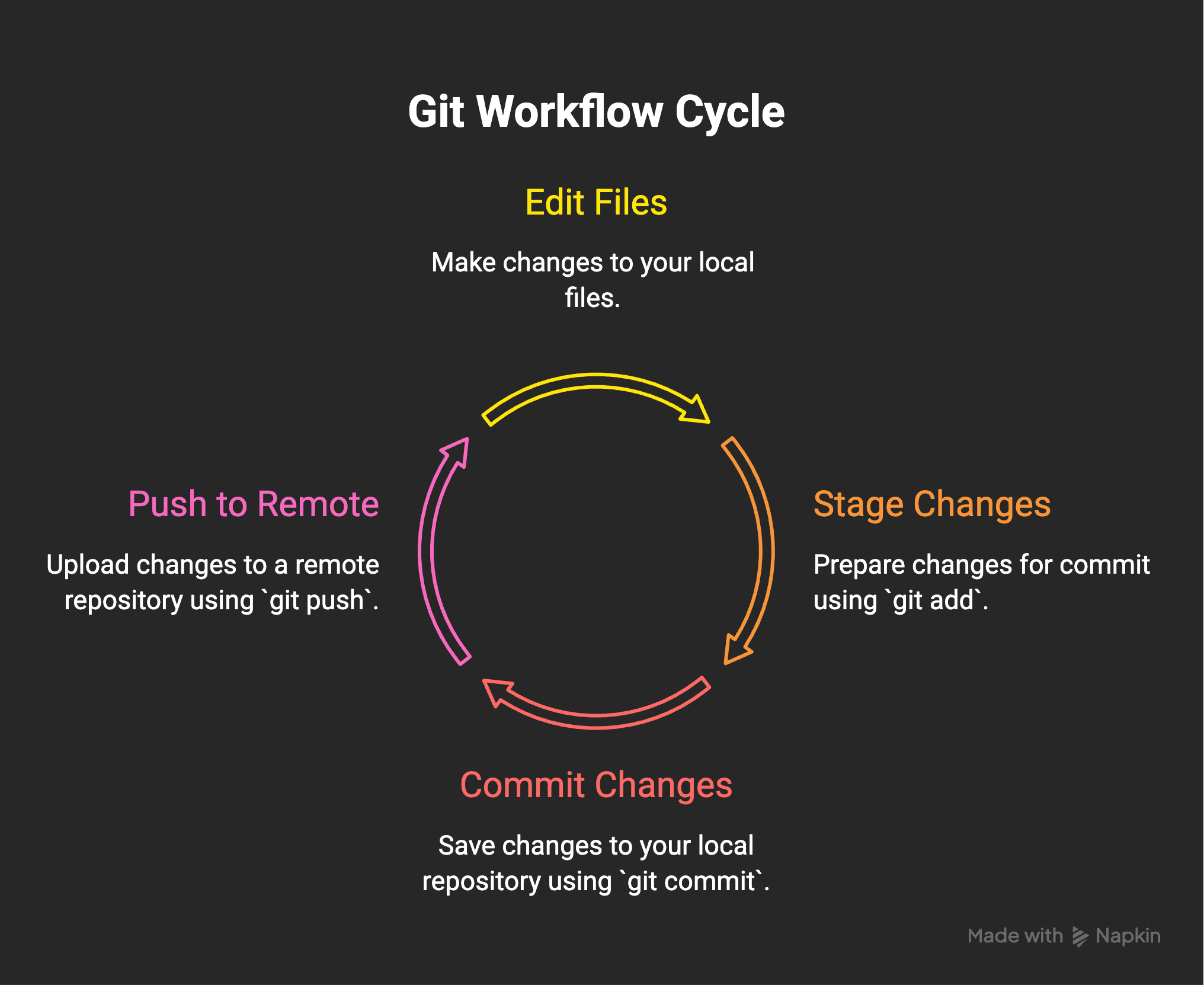
- Working directory: Your local files on disk — the files you edit.
- Staging area (index): Where changes are prepared for commit (
git add). - Local repository: The committed history on your machine (
.git— whatgit commitupdates). - Remote repository: A hosted copy (e.g., GitHub) you push to (
git push).
Move changes forward — the common commands
1) From working directory → staging area
git add <file>           # stage a single file
git add -A               # stage all changes (new, modified, deleted)
git add .                # stage changes in current directory
git add -p               # interactively choose hunks to stage
2) From staging area → local repository (commit)
git commit -m "Short, descriptive message"
git commit --author="Name <email>"  # override author
git commit --amend -m "Updated message"  # amend last commit (if not pushed)
3) From local repository → remote
git push origin main     # push commits to remote branch
git push --set-upstream origin feature/x  # first-time push for branch
Shortcuts that aggregate steps
git commit -am "msg"— stages tracked modifications and commits in one step (does NOT add new untracked files).git add -A && git commit -m "msg" && git push— stage all, commit, then push in one line.git push origin HEAD— push current branch’s HEAD to remote (handy in scripts).
Stepping back — undoing or moving changes backward
1) Unstage files (staging → working directory)
git restore --staged <file>   # recommended (Git 2.23+)
git reset HEAD <file>         # older common approach
2) Undo last commit but keep changes staged or unstaged
git reset --soft HEAD~1       # undo commit, keep changes staged
git reset --mixed HEAD~1      # undo commit, keep changes in working dir (unstaged)
git reset --hard HEAD~1       # WARNING: discard commit and working dir changes
3) Discard working-directory changes
git restore <file>            # discard unstaged changes (Git 2.23+)
git checkout -- <file>        # older form
4) Undo a commit that has already been pushed
git revert <commit>creates a new commit that undoes the given commit (safe for shared history).git reset --hard <commit>thengit push --force-with-leaseforcibly rewrites remote history (dangerous on shared branches).
Examples: practical workflows
- Quick edit and push (tracked files only):
git commit -am "Fix typo in README" && git push
- Add everything, commit, push:
git add -A
git commit -m "Implement feature X"
git push
- Stage part of a file interactively, then commit:
git add -p README.md
git commit -m "Update usage examples"
- Keep working changes aside without committing:
git stash push -m "WIP: refactor auth"
# ... switch branch or pull
git stash pop
Safe undo recipes (recommended)
- Undo a local commit but keep changes for editing:
git reset --soft HEAD~1
# edit, then recommit
- Unstage a file you accidentally added:
git restore --staged path/to/file
- Revert a pushed commit without rewriting history:
git revert <sha>
git push
Key notes and best practices
- Use
git statusoften — it shows which stage each change is in. - Prefer
git restore/git switchfor clarity (newer commands);git reset/git checkoutstill work. - Avoid
git push --force; when necessary, prefer--force-with-leaseand communicate with teammates. - Use
git stashto move uncommitted work out of the way without committing. - For single-line scripting, combine commands but avoid force in automation that affects shared branches.
TL;DR
- Working directory →
git add→ staging →git commit→ local repo →git push→ remote. - To step back:
git restore/git reset/git revertdepending on whether changes are staged, committed, or pushed.
Next steps
Try these in a throwaway branch: create a file, stage portions, commit, then practice git reset --soft, git restore --staged, and git revert to see how each stage changes.
This post is licensed under
CC BY 4.0
by the author.